 CyberCode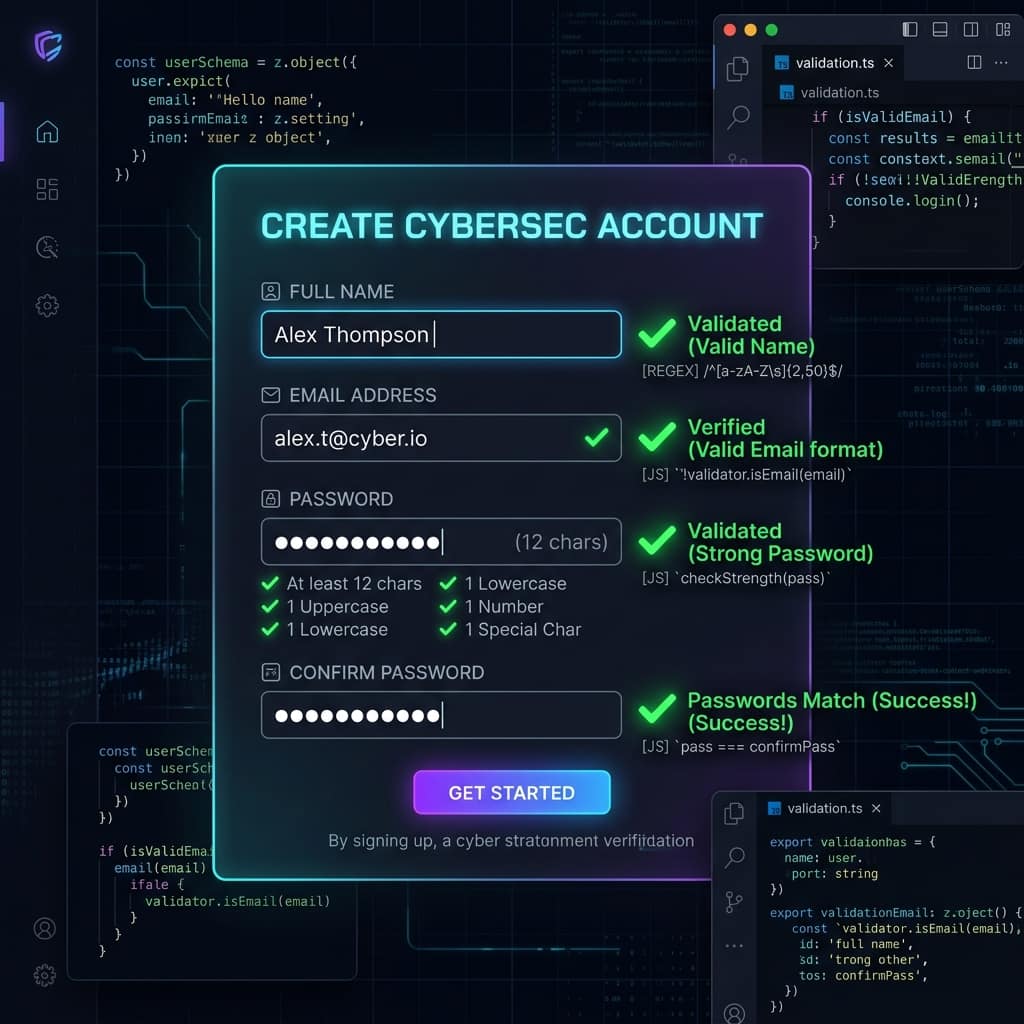
web-development · Intermediate · 2026-07-05
Project: Build a Signup Form with JavaScript Validation
Build a real signup form with instant validation — required fields, email format checking with regex, password rules and friendly error messages, step by step.
Every real application has forms, and every form needs validation. This project builds a signup form that checks input the moment the user submits — required fields, an email format test with a regular expression, password rules — and shows friendly, per-field error messages. It combines everything from the DOM and functions tutorials into one real component.
What you will learn
- Handling form
submitandevent.preventDefault() - A reusable
setErrorhelper — one function, every field - Email checking with a regular expression
- Password rules with multiple tests
- Combining validators with
.every(Boolean)
Step 1: why preventDefault comes first
A form's default behaviour is to submit to a server and reload the page — killing your JavaScript mid-thought. The first line of any client-side submit handler:
form.addEventListener("submit", function (event) {
  event.preventDefault();
  // now we are in control
});
Step 2: one error helper for every field
Each field has an <input id="name"> and a matching <p id="name-error">. That naming convention lets one function serve all fields:
function setError(id, message) {
  document.getElementById(id + "-error").textContent = message;
  document.getElementById(id).classList.toggle("invalid", message !== "");
  return message === ""; // true = field is valid
}
Note the trick: it returns whether the field passed, so validators can end with return setError(...) — set the message and report the result in one line.
Step 3: the validators
Each validator follows the early-return pattern — reject first, approve last:
function validateEmail() {
  const value = document.getElementById("email").value.trim();
  const pattern = /^[^\s@]+@[^\s@]+\.[^\s@]+$/;
  if (value === "") return setError("email", "Email is required.");
  if (!pattern.test(value)) return setError("email", "Enter a valid email address.");
  return setError("email", "");
}
The regex reads: no-spaces-or-@ characters, an @, more characters, a dot, more characters. It catches real typos (user@, user.com, user @mail.com) without attempting the full email standard, which is famously unenforceable by regex.
Step 4: combining results
const ok = [validateName(), validateEmail(), validatePassword()].every(Boolean);
All three validators run (so every field shows its error at once — not just the first), then .every(Boolean) asks: did all return true? This beats chaining &&, which would stop at the first failure and leave later fields unvalidated.
Try it in the editor
Submit the empty form — three errors at once. Fix them one by one and watch each error clear. Then try user@site (no dot) and a 7-character password.
Press Run after each change to see the result instantly.
Practice exercises
All three extend the form in the editor.
Exercise 1 (easy): Add live validation: make the email field re-validate as the user types, so the error clears the moment the address becomes valid. One line — listen for input on the email field.
Solution:
document.getElementById("email").addEventListener("input", validateEmail);
Exercise 2 (medium): Add a "Confirm password" field (input + error <p>, ids confirm / confirm-error) and a validateConfirm() that checks it matches the password. Remember to add it to the .every array.
Solution:
function validateConfirm() {
  const pw = document.getElementById("password").value;
  const cf = document.getElementById("confirm").value;
  if (cf !== pw) return setError("confirm", "Passwords do not match.");
  return setError("confirm", "");
}
// in the submit handler:
const ok = [validateName(), validateEmail(), validatePassword(), validateConfirm()].every(Boolean);
Exercise 3 (challenge): Add a live password strength hint under the password field: "weak" below 8 characters, "okay" at 8+, "strong" at 12+ with a number and an uppercase letter. Update it on every keystroke and colour it via classes, not inline styles.
Solution:
document.getElementById("password").addEventListener("input", function () {
  const v = this.value;
  const hint = document.getElementById("password-error");
  const strong = v.length >= 12 && /[0-9]/.test(v) && /[A-Z]/.test(v);
  hint.textContent = v.length < 8 ? "weak" : strong ? "strong" : "okay";
});
Real accounts deserve real passwords — generate one with our Password Generator, and see the password strength math behind the rules.
Practise what you learned
Edit the code below and press Run to see your changes live.
Test yourself
Answer from memory first, then check yourself against the answer.
Q1Why do we call event.preventDefault() in the submit handler?
A form's default action submits to a server and reloads the page — wiping our JavaScript state before it can run. preventDefault() stops that, letting us validate and respond entirely in the browser.
Q2Why validate in the browser if a real app must validate on the server anyway?
Client-side validation is for user experience — instant feedback without a round trip. It is not security: anyone can bypass it with dev tools. Real apps validate in both places: browser for speed, server for trust.
Q3What does the regex /^[^\s@]+@[^\s@]+\.[^\s@]+$/ actually check?
Something that is not whitespace or @, then an @, then more non-@ characters, a literal dot, and more characters to the end — i.e. name@domain.tld shape. It rejects obvious typos without trying to enforce the full (enormously complex) email standard.