 CyberCode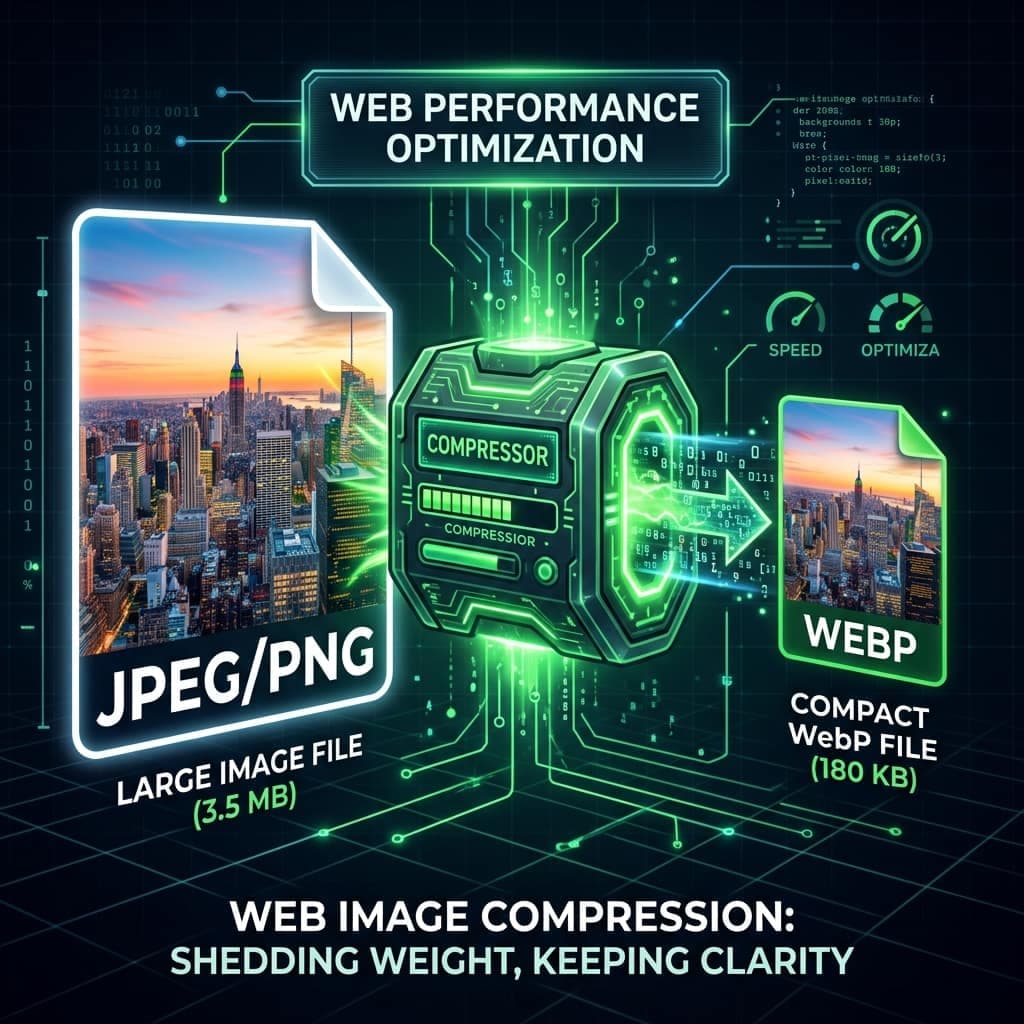
2026-06-25
How to Compress Images for the Web Without Losing Quality
Images are 50%+ of most pages' weight. Learn the resize-then-compress workflow, the right quality setting (hint: 80%), and when to convert to WebP — all with free browser tools.
Images account for roughly half the weight of a typical web page, and oversized images are the single most common cause of slow sites. The fix is a two-step workflow — resize first, then compress — and done right, it cuts image weight by 80-95% with no visible quality loss.
Step 1: Resize to display size
A phone photo is ~4000×3000 pixels; a blog content column is rarely wider than 800. Serving the original means shipping 15× more pixels than anyone sees — the browser just throws them away.
Resize to roughly the largest size the image is displayed at (use 2× for sharp high-DPI screens: an 800px column → 1600px image). Our Image Resizer does this in your browser with aspect-ratio lock and presets.
This step alone typically cuts file size 70-90% — before compression even starts.
Step 2: Compress with the right quality setting
JPEG and WebP quality runs 0-100, and the curve is not linear:
| Quality | Visual result | Typical size vs 100% |
|---|---|---|
| 95-100 | Indistinguishable, wasteful | 100% |
| 75-85 | Visually identical for photos — the sweet spot | 30-50% |
| 60-75 | Fine for thumbnails | 20-30% |
| Below 60 | Visible artefacts around edges | <20% |
Start at 80 in our Image Compressor, compare the side-by-side preview, and only go higher if you can actually see the difference.
Step 3 (bonus): Convert to WebP
WebP compresses 25-35% smaller than JPEG at the same visual quality, supports transparency like PNG, and works in every current browser. Converting is one click in our Image Converter.
Format cheat sheet:
- Photos → WebP (or JPEG for maximum compatibility)
- Logos, icons, screenshots with text → PNG or WebP-lossless — JPEG smears sharp edges
- Simple graphics → SVG beats them all when available
A real example
A 3.4 MB, 4032×3024 phone photo destined for an 800px blog column:
- Resize to 1600px wide → ~800 KB
- Compress at quality 80 → ~180 KB
- Convert to WebP → ~120 KB
Total: 96% smaller, zero visible difference at display size.
Why this matters for SEO
Page speed is a Google ranking factor via Core Web Vitals — especially LCP (Largest Contentful Paint), which is usually your hero image. Google's data shows bounce probability rises 32% as load time goes from 1 to 3 seconds. Compressed images are the highest-impact, lowest-effort performance win available.
All three tools above run entirely in your browser — your images are never uploaded, which also makes them safe for private photos and client work.
Frequently asked questions
Is 80% quality really invisible? For photographs viewed at normal size — yes, in blind tests almost nobody distinguishes 80 from 100. Graphics with sharp edges and text are the exception; keep those in PNG.
Should I compress PNG screenshots as JPEG? No — JPEG creates fuzzy halos around text. Keep screenshots PNG, or convert to lossless WebP for ~25% savings without artefacts.
What about "lossless compression" claims? Lossless tools strip metadata and optimise encoding — real but modest gains (5-30%). The big wins are resizing and sensible lossy quality, which is why the order of this workflow matters.
Does Google prefer WebP? Google prefers fast pages. WebP helps because files are smaller — there is no format-specific ranking bonus.